
A cracked or unresponsive iPhone screen is stressful enough on its own. But the real problem starts when you realize you haven't backed up your data yet. Before you rush to a repair shop, backing up what's on your device should be the priority, because there's no guarantee your data survives a screen replacement. This guide explains how to backup an iPhone with a broken screen in several ways, whether the screen is just cracked, completely black, or touch-unresponsive.
Part 1. Quick Answer: How to Backup an iPhone with a Broken Screen
If you're wondering, "Can you backup iPhone with broken screen," the answer is yes. But it depends on whether your iPhone has previously "trusted" the computer you're connecting to. If it has, the process is straightforward. But if it hasn't, you need to verify identity on the device first, which complicates things with a broken screen. Before we get into detail, here are the methods that work based on different situations:
- Screen partially works + phone previously trusted a computer: You can use Mac Finder or iTunes on a Windows PC.
- Screen unresponsive, but Touch ID/Face ID works: You can use an external USB keyboard via a Lightning/USB-C adapter to utilize iCloud backup.
- Phone never trusted the computer: You need to enter your passcode first (using VoiceOver + physical keyboard or a portion of the working screen).
- Extremely damaged screen: You can use Tenorshare iCareFone, which handles broken-screen backups with minimal screen interaction.
Part 2. How We Tested Ways to Backup an iPhone with a Broken Screen
To make this guide reliable, we tested each backup method using iPhones with different screen damage conditions to see which options actually work when the screen is broken.
To compare the most practical solutions, we tested each method using the same devices and checked how well they worked under real damage scenarios.
Devices and Test Setup
We used the following devices during testing :
- iPhone 13 with cracked screen and partial touch response
- iPhone 12 with black screen but still powered on
- MacBook Air running macOS Sequoia
- Windows 11 PC with iTunes installed
- External USB keyboard for passcode testing
Data Used in Testing
To simulate a realistic backup, the iPhones contained:
- 4,300 photos
- 215 videos
- 6,700 messages
- WhatsApp chats and attachments
- Notes and voice memos
- Installed apps with app data
The total used storage was approximately 61 GB.
This made it possible to check whether each method created a full backup or only partial data access.
What We Checked During Testing
Each method was tested under the same conditions.
For every option, we checked:
- Whether the iPhone could be unlocked with a damaged screen
- Whether the computer could be trusted successfully
- Whether a full backup completed
- Whether the process required screen interaction
- Whether data remained accessible after backup
- Whether the backup failed due to connection or trust issues
This helped compare methods that work only on already trusted computers and those that can help in more difficult situations.
How We Rated Each Method
Backup Completeness: Whether the method saved all device data instead of selected files only.
Ease of Use: How simple the process was for users dealing with a damaged screen.
Device Requirements: Whether the method required a trusted computer or additional accessories.
Backup Speed: The total time required to complete the backup.
Reliability: Whether the backup completed successfully without interruptions.
Part 3. How to Enter Passcode on iPhone with a Broken Screen
If your iPhone has never been connected to your computer, you must unlock it first, which requires entering the passcode. In case the touchscreen is partly functioning, you can still manage this, though it may take time using VoiceOver.
However, if the screen is completely unresponsive or black, this method won't work unless you connect an external keyboard. Here's how to backup iPhone with broken screen and passcode by unlocking it first:
Method 1: Use the Functioning Part of the Screen
If part of your iPhone screen is functioning, you can employ VoiceOver to input the phone passcode. Here's how:
- Switch on the VoiceOver by holding the "Home" or "Side" button and saying, "Turn on VoiceOver."
- Open the passcode screen ("Home" button twice or swipe up and pause).
- Swipe on the functioning part of the screen to move between numbers. VoiceOver will speak each number.
- Double-tap to select each digit and enter your passcode.


Method 2: Use an External Keyboard
If your iPhone screen is not functioning at all, employ an external keyboard to input the passcode. Here's how:
- Connect a Lightning to USB or USB-C adapter to your iPhone and connect the keyboard to it. Ask "Siri" to "Turn on VoiceOver."
- Use the arrow keys to move on the screen. Type your passcode on the keyboard.

Part 4. How to Trust Computer on iPhone with a Broken Screen
When you connect an iPhone to a new computer, it asks, "Trust This Computer?" and you normally tap "Trust." If the screen is broken, that tap may not work. To get around this, you must first unlock the phone using Face ID or Touch ID. Then, ask Siri to turn on VoiceOver, or use an external keyboard to trust the computer.
If your iPhone was connected to your computer before, you can employ a Bluetooth keyboard, as there's no need to trust the computer. But you'll still need the USB keyboard to make the Bluetooth one work. Here's how to backup an iPhone with a broken screen by trusting your computer, first:
- Connect a USB keyboard to your iPhone. Next, connect a Bluetooth keyboard to the phone.
- Head to the "Bluetooth settings" using Siri ("open Bluetooth settings" or "turn Bluetooth on").
- Use the USB keyboard arrow keys to navigate. Pair your Bluetooth keyboard by pressing "Ctrl + Option + Space."
- After pairing, unplug the USB keyboard and connect your iPhone to the computer with a cable.
- When the "Trust This Computer" prompt appears, use the Bluetooth keyboard arrow keys to select "Trust." Confirm with "Ctrl + Option + Space."
- Enter your passcode using the Bluetooth keyboard if needed. Your iPhone is now trusted, so you can back it up on the computer.


Part 5. How to Backup iPhone with a Broken Screen on Trusted Computer
Once your iPhone trusts a computer, backing it up is easy. You can use Finder on a Mac or iTunes on Windows/older Macs, or start an iCloud backup using a keyboard. Keep in mind, Finder/iTunes needs a working USB cable and the phone to show up in the app.
While iCloud requires Wi-Fi, enough storage, and more steps for a damaged screen. Also, both methods back up everything. So, you can't pick specific data. If you're alright with that, here's how to backup iPhone with broken screen to iTunes, Finder, or iCloud:
Option 1: Back up to Mac (Finder)
Here's how to backup iPhone with broken screen to MacBook Finder:
- Connect your iPhone to your Mac with a USB cable. Then, open "Finder" and select your iPhone from the sidebar.
- In the "General" tab, choose "Back up all of the data on your iPhone to this Mac." Click "Back Up Now" and wait.

Option 2: Back up with iTunes (Windows/older Mac)
Here's how to backup iPhone with broken screen on Windows or older Macs:
- Open iTunes and connect your iPhone. Then, click the device icon.
- Next, select "This Computer" beneath "Backups." Click "Back Up Now" (this saves all data).

Option 3: Back up to iCloud (Using Keyboard)
Here's how to backup iPhone with broken screen to iCloud with a keyboard:
- Connect a USB keyboard using an adapter to your iPhone. Then, ask "Siri" to switch on "VoiceOver" and open "iCloud settings."
- Use the arrow keys to reach "iCloud Backup." Then, press "Ctrl + Alt + Space" (Windows) or "Control + Option + Space" (Mac) to select.
- Switch on "iCloud Backup" if needed. Head to "Back Up Now" and select it. Stay on Wi-Fi until the backup is complete.

Part 6. Fastest and Easiest Way to Backup iPhone with a Broken Screen
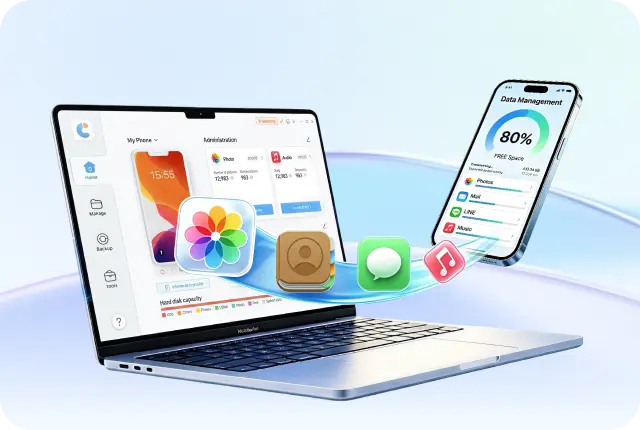
If the manual steps to backup iPhone with broken screen to Mac feel too complicated, especially with a damaged screen, Tenorshare iCareFone can make things easier. It's an AI-powered iOS Manager that can manage backups more efficiently.
 Secure Download
Secure Download
Secure Download
The tool operates directly on your computer, so you don't need to use the broken screen much (except for the first trust step). Unlike iTunes, iCloud lets you choose what to back up (photos, messages, contacts, WhatsApp, etc.), not everything at once. You can also preview the backup and restore it on your iPhone without data loss. But iCareFone is more than just an AI backup tool. Here's how:
- Saves backups directly to your computer, so no iCloud storage limit.
- Allows full backup and restore of data (including WhatsApp chats).
- Lets you manage and move contacts, music, photos, videos, and messages between iPhone and PC/Mac with one click.
- Can download apps not available in your region (like TikTok or BGMI).
- Converts HEIC photos to JPG in bulk with one click.
- Some free features include iPhone backup, developer mode, device testing, and AI wallpaper (Mac only).
- Supports both Windows and Mac.
- Supports iPhone 17, iOS 26, and earlier.
Here's how to back up your iPhone with a broken screen with Tenorshare iCareFone:
- Connect your iPhone to your computer. Then, execute Tenorshare iCareFone on the same computer. Click the "Backup & Restore" tab. Choose "Back Up Now."
- Choose what you want to back up. Hit "Backup." You can tap "View Backup Data" to preview the backup created.
- If you want to transfer the backup to your computer, click "Export to Computer."


Part 7. FAQs on How to Backup an iPhone with a Broken Screen
Q1. Can you back up an iPhone without a computer?
Yes. If iCloud backup is already turned on, your iPhone will automatically back up when it is connected to Wi-Fi, charging, and locked. But if it's not on, you can still enable it using VoiceOver and a keyboard.
Q2. How can I transfer data from a broken phone that won't turn on?
If your iPhone won't turn on at all, your options are limited. But if iCloud backup were already on, you could restore your data to a new iPhone during setup. In case there's no backup, you may need a professional data recovery service, which can sometimes recover data directly from the phone's storage.
Q3. How to get photos off iPhone with a broken screen?
The quickest way to get photos off an iPhone with a broken screen is to use Tenorshare iCareFone. It can back up, view, and export only your photos to your computer if needed. But if the phone has never trusted a computer, you'll need VoiceOver with a keyboard to unlock and allow access first.
Conclusion
Knowing how to backup an iPhone with a broken screen depends on your situation. If the phone already trusts a computer, you can use Finder or iTunes to back it up. If not, you may need VoiceOver, a keyboard, or iCloud to unlock and set things up first. These manual steps can be slow and difficult, especially with a damaged screen.
For a faster and automatic option, Tenorshare iCareFone is a good choice. It lets you back up, restore, and manage your iPhone data directly from a computer with less effort and more flexibility, even when your screen is not functioning properly.



- Free backup everything you need on iPhone/iPad/iPod
- Transfer music, photos, videos, contacts, SMS without limitation
- Selectively restore files without erasing current data
- 1-Click to transfer photos from iPhone to PC/Mac
- Supports the latest iOS 26 and iPhone 17
100% clean & secure
100% clean & secure
Buy safely
Buy safely
 The END
 130
130 17
17 15
15 41
41 21
21 28
28 87
87