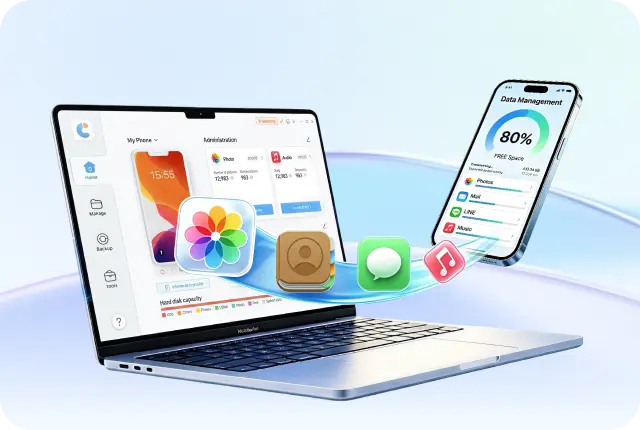

Backing up your iPhone to a PC is important to protect your data, like photos, messages, apps, and settings, in case your device is lost, damaged, or replaced. So, what methods can you employ to back up your iPhone to a PC? In this post, we'll share 6 easy ways for both Windows and Mac users. Each method suits a different situation, where you can either use it or not. So, pick accordingly.
Part 1. How I Tested the Best 6 Ways to Backup iPhone to PC
To make this guide more useful, I tested all 6 methods under the same conditions and compared them based on backup completeness, time, ease of use, and reliability.
Test Devices and Environment
I used the following devices for testing:
- iPhone 15 running iOS 18
- iPhone 17 Pro running iOS 26
- Windows 11 desktop with 512 GB SSD
- External SSD for export testing (Samsung T7 Portable SSD 2TB)
Backup Data Used in Testing
To simulate real use, each iPhone contained a complete set of personal data:
- 5,200 photos
- 80 videos (4K 60FPS x12, 4K 30FPS x8, 1080P 60FPS x22, 1080P 30FPS x26, 720P 30FPS x8, 720P 240FPS x4)
- 48 installed apps
- 5 GB of documents
- 7,000 messages
- WhatsApp chats and media
- Contacts, notes, and voice memos
The total device storage used during testing was approximately 58 GB.
This made it easier to compare whether each method could truly back up a complete iPhone rather than just certain file categories.
How Each Backup Method Was Tested
Each method was tested from start to finish using the same device data.
For every backup option, I checked:
- Whether a full backup could be created
- Whether app data and messages were included
- How long the first backup took
- Whether the backup could be accessed later
- Whether the process failed or froze
- Whether extra software or account setup was required
How I Rated Each MethodBackup Completeness
Backup Speed: The total time required to finish a full backup.
Ease of Use: How simple the process was for regular users, including setup and navigation.
Accessibility: How easily backup files could be viewed, exported, or restored later.
Reliability: Whether the process completed successfully without connection errors, freezes, or failed backups.
Part 2. Can You Backup Your Entire iPhone to Computer?
Yes, you can backup iPhone to PC. The backup saves a full copy of your data, like photos, messages, apps, settings, and files, directly on your computer for free. It helps you restore your information or move it to a new device if needed. The backup usually includes things like texts, notes, call history, contacts, settings, and most other important data stored on your iPhone.
Part 3. Backup iPhone to PC Without iTunes (Easiest Way)
You can selectively backup iPhone to PC without iTunes using a third-party tool like iCareFone. It supports cross-platform use on both Windows and Mac, backup of specific apps, media, or messages, and WhatsApp chat backup and restore. With data organization powered by AI, you can quickly identify and back up the files that matter most. Besides, the tool can restore messages, bookmarks, contacts, photos, videos, and music directly to your iPhone. Here's what more it offers:
 Secure Download
Secure Download
Secure Download
- Backup Data: Backup iPhone to PC/Mac or external drive and restore, including WhatsApp chats.
- Manage Data: Move or manage contacts, music, videos, and messages between iPhone/iPad and PC/Mac with AI sorting
- Transfer Data: Transfer photos from iPhone to PC or Mac in a single tap.
- Download Apps: Download apps not available in your country, like BGMI or TikTok.
- HEIC Converter: Convert HEIC photos to JPG in batches with one click.
- Free Features: Offers iPhone backup, developer mode, iPhone testing, and AI wallpapers (Mac only).
Here's how to back up your iPhone data with iCareFone without iTunes:
- Attach your iPhone to your computer. Then, execute iCareFone. Choose the "Backup Records" tab on the tool's interface.
- Click "Restore." All backups created by iCareFone will appear. Choose a backup to continue.
- If the backup is encrypted, enter the password to access the files. Select the files to restore. Then, choose to export to your iPhone or computer.


Part 4. Backup iPhone to PC Using Apple Devices (New Official Way)
On modern Windows 11 systems, the Apple Devices app from the Microsoft Store has replaced iTunes for managing iPhones and offers a simple way to back up your device. However, the app is not yet supported by Windows 10. If you're a Windows 11 user, here's how to backup iPhone to PC over Wi-Fi using Apple Devices:
- First, connect to WiFi to install the "Apple Devices app" on your computer. To do this, open the Microsoft Store from the "Start" menu.
- Search for "Apple Devices." Then select the app by Apple Inc. Hit "Get" or "Install" to download it.
- Attach your iPhone to your PC via USB cable. Then, unlock it. Hit "Trust" when prompted.
- Open the "Apple Devices" app. Click your iPhone icon in the top-left corner.
- Beneath "Backups," select "Back up all the data on your iPhone to this computer." Hit "Back Up Now."

Part 5. Backup iPhone to PC Using iTunes
iTunes automatically backs up your iPhone when you connect it to your computer, but you can also back up your device manually at any time. Here's how to backup iPhone to PC running Windows 11/Windows 10:
- Attach your iPhone to your computer using a USB or USB-C cable. Open iTunes on your PC.
- Tap the iPhone icon at the top. Next, head to "Summary." Click "Back Up Now" to start the backup.
- When the backup finishes, you'll see the date and time of the last backup. To view it, head to "Edit." Then, click "Preferences." Next, tap "Devices."


Part 6. Backup iPhone to PC Using Finder
If you're using macOS Catalina or later, then Finder is the official tool that you can use to back up your iPhone on a Mac. Here's how to do that:
- Attach your iPhone to your Mac. Then, execute "Finder" (press Command + N or open a new Finder window).
- Select your iPhone from the sidebar beneath "Locations." Click "General" at the top.
- Choose "Back up all of the data on your iPhone to this Mac." Hit "Back Up Now" to start the backup.

Part 7. Backup iPhone to PC via iCloud
iCloud lets you back up your iPhone wirelessly and access your data across Apple devices, and even on a Windows PC using the iCloud for Windows app. However, it only gives 5GB of free storage. While a full backup of a large iPhone (like 256GB) can be saved on your PC for free using a local backup without any monthly cost. If you're fine with that, follow the instructions beneath to backup your iPhone via iCloud:
- Open Settings on your iPhone. Then, tap your name. Head to "iCloud."
- Next, choose "iCloud Backup." To back up right away, hit "Back Up Now."
- Afterward, download "iCloud for Windows" from the Microsoft Store. Sign in with your Apple ID.
- Choose what data to sync (like Photos or Contacts). Your files will appear in "File Explorer" beneath "iCloud Drive."


Part 8. Backup iPhone to External Hard Drive
Backing up your iPhone to an external hard drive gives you more control and saves space on your computer. It avoids iCloud limits and subscription costs, and lets you store large backups without restrictions. Also, it makes it easy to carry your data and use it on different computers. Here's how to backup iphone to PC external drive:
Windows (PC + External Drive):
- Connect your iPhone to your PC. Then, open iTunes. Click "Back Up Now."
- Next, execute File Explorer (Win + E). Head to:
- C:\Users\\YourUsername\\AppData\Roaming\Apple Computer\MobileSync\Backup
- On your external drive, create a folder called "MobileSync." Then copy the entire backup folder into it (e.g., E:\MobileSync\).
- Execute "Command Prompt" as "Administrator." Type the following command and hit "Enter" afterward:
- MkLink /J "C:\Users\\YourUsername\\Apple\MobileSync\Backup" "E:\MobileSync\Backup" (This will save future backups to the external drive).
- Open iTunes, back up again, and check your external drive to confirm new files appear.


Mac (Finder + External Drive):
- Connect your iPhone and external drive to your Mac. Then, open "Finder." Select your iPhone. Click "Back Up Now."
- Press "Command + Shift + G." Head to:
- ~/Library/Application Support/MobileSync/Backup/
- Move the backup folder to your external drive. Execute "Terminal." Type the following command:
- ln -s /Volumes/FileStorage/\ExternalDriveName/Backup ~/Library/Application\ Support/MobileSync/Backup(Future backups will now save to the external drive).
- Back up again and check the latest backup time in "Finder" and the external drive folder to confirm it worked.


Conclusion
There are several ways to backup iPhone to PC or Mac, from iTunes and Finder to iCloud, Apple Devices, or an external hard drive. Each method offers benefits, but for the easiest and most flexible option, a third-party tool like iCareFone is an appropriate choice.
It lets you selectively back up your iPhone and restore it directly to the PC without iTunes quickly. The tool can also manage your data, including photos, messages, and WhatsApp chats, making it ideal for both Windows and Mac users.



- Free backup everything you need on iPhone/iPad/iPod
- Transfer music, photos, videos, contacts, SMS without limitation
- Selectively restore files without erasing current data
- 1-Click to transfer photos from iPhone to PC/Mac
- Supports the latest iOS 26 and iPhone 17
100% clean & secure
100% clean & secure
Buy safely
Buy safely
 The END
 130
130 17
17 15
15 41
41 21
21 28
28 87
87