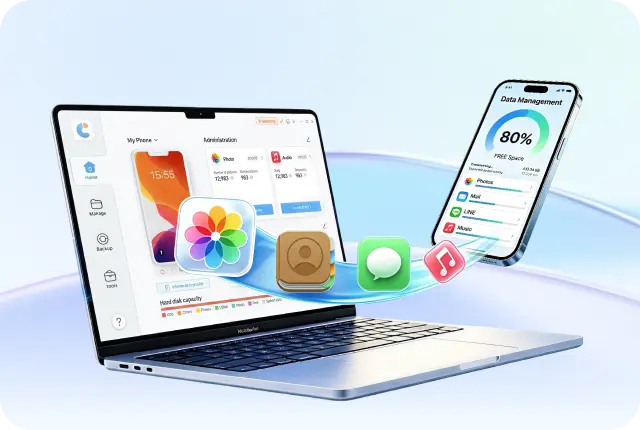

Fake iPhones are becoming harder to identify because many now look and function like real ones, even showing similar iOS-style screens. So you can't rely on appearance alone, especially when buying a used phone or receiving one as a gift.
Many people only realize a phone is fake or not genuine after problems like poor battery life, broken features, or Apple refusing service. But there are ways to check counterfeits. This guide explains how to check if iPhone is original in 7 ways, along with their limits.
Part 1. Quick Checklist: How to Check if iPhone Is Original
Before we explain all 7 methods to check whether your iPhone is original, here's a quick checklist of them:
 Please swipe to view
Part 2. How We Tested the 7 Ways to Check if Your iPhone Is Original or Fake
To make this guide more reliable, we tested all 7 methods using both genuine and imitation iPhone devices to compare which checks actually help identify an original iPhone.
Checking whether an iPhone is original is not always straightforward. Some fake devices copy the appearance very closely, while others even display valid looking serial numbers and settings screens. In many cases, simple visual checks are not enough.
To find out which methods are truly useful, we tested each one on real devices and compared how accurately they detected fake or modified iPhones.
Devices Used for Testing
We used the following devices during testing:
- iPhone 15 purchased from Apple official retail
- iPhone 13 verified original second hand device
- One imitation iPhone running Android based clone system
- One refurbished iPhone with replaced parts
This combination allowed us to compare how each method performs across genuine, fake, and modified devices.
Testing Scenarios
To simulate common situations, we checked each device under the same conditions.
We tested whether each method could identify:
- Fake hardware appearance
- Non original iOS interface
- Invalid serial number information
- Activation Lock inconsistencies
- Replaced components
- Hidden software modifications
What We Verified During Testing
Each checking method was tested using the same devices.
For every method, we compared:
- Accuracy in identifying fake devices
- Speed of verification
- Ease for non technical users
- Ability to detect refurbished or modified devices
- Whether additional software was required
- Risk of misleading results
Some methods were useful for quick checks, while others provided much more reliable results when verifying second hand iPhones.
How We Rated Each Method
Detection Accuracy: Whether the method could correctly identify original and fake iPhones.
Ease of Use: How simple the process was for regular users without technical knowledge.
Speed: The total time needed to complete the check.
Depth of Verification: Whether the method could detect internal issues such as modified parts or cloned systems.
Reliability: Whether the result could be trusted without false positives.
Part 3. 7 Ways to Check if iPhone Is Original
The following are 7 ways to check if your iPhone is original or not. You can use one or more than one check together for surety:
1. Check if iPhone Is Original For Free with iCareFone (100% Accurate)
You can check if your iPhone is original or counterfeit without any serial or IMEI number with iCareFone. It's an AI-powered iOS Manager that can also run a free device test to check if important features and functions are functioning properly. This makes it more dependable than simple serial number checks. Here are more features that iCareFone offers:
 Secure Download
Secure Download
Secure Download
- Transfer Data: Move photos from iPhone to PC/Mac in one click.
- Manage Files: Transfer and organize contacts, music, videos, and messages between iPhone/iPad and PC/Mac.
- Backup & Restore: Save iPhone data, including WhatsApp chats, to a computer or external drive.
- Download Apps: Install apps not available in your region, like BGMI or TikTok.
- HEIC Converter: Convert HEIC photos to JPG in batches with one click.
- Free Features: Includes iPhone backup, developer mode, iPhone testing, and AI wallpapers on Mac.
Here's how to know if iPhone 17 is original using iCareFone:
- Download, install, and execute iCareFone on your computer. Then, connect your iPhone to the same computer. Tap "Trust This Computer" on the phone.
- Open iCareFone. Click "Test Report" on the home screen. The tool will show if the iPhone has been opened or repaired.
- Check the table of results and make sure every status says "Normal."


2. Check iPhone Serial Number
Every real iPhone has its own serial number that Apple keeps on record. So you can know if iPhone is original by serial number by checking the number on Apple's website. However, this isn't completely dependable because fake phones can copy serial numbers from real ones. So, even if the number looks valid, it doesn't guarantee that your phone is genuine. Here's how to use the iPhone serial number checker website:
- Head to "Settings" on your iPhone. Then, choose "General." Tap "About."
- Find the "Serial Number" and copy it. Open a browser. Next, head to checkcoverage.apple.com.
- Paste the serial number and complete the CAPTCHA. You'll see details like purchase date and warranty. If it says the number is invalid, the phone may be fake or altered.


3. Check IMEI Number
IMEI is a 15-digit number unique to every phone. You can also use it to check if an iPhone is registered, stolen, or blocked by networks, which is helpful when buying a used phone. However, it's not a perfect test of authenticity. A fake phone can still use a real IMEI number, so this method should be used together with other checks. Follow the steps beneath to check if iPhone is original using IMEI:
- On your iPhone, head to "Settings" > "General" > "About" > "IMEI."
- Check if the IMEI matches the number on the box or SIM tray (older models).
- Enter the IMEI on sites like imei.info or .
- Compare the results with your iPhone. If the details don't match, the device may not be genuine.


4. Check iOS System and App Store
Real iPhones operate on Apple's iOS, which functions differently from fake iOS skins on Android clones. One easy check is the App Store. Only real iPhones can access Apple's official App Store. However, this method isn't perfect. Some advanced fake phones can closely copy the look and feel. Here's how to check if iPhone is original with App Store and iOS system:
- Open the "App Store" on your iPhone. A real iPhone shows Apple's full store and works with an Apple ID. While fake ones may crash or look unusual.
- Next, head to "Settings" > "General" > "About." Check the iOS version. If it doesn't look like a normal version (e.g., 16.x, 17.x), it may be fake.

5. Check Physical Build and Design
Real iPhones are known for high build quality, including their weight, buttons, speakers, and ports. Comparing it with a genuine iPhone can help spot differences, but on its own, this method isn't very dependable. Modern fake phones can look and feel very similar. Here's how to check if iPhone is original or refurbished:
Examine the following:
- Weight: Real iPhones have specific weights (e.g., iPhone 15 Pro is about 187g). While fakes may feel slightly heavier or lighter.
- Buttons: Genuine buttons feel firm and clicky. Whereas fake ones may feel soft or loose.
- Charging port: Original ports fit cables tightly. But fake ones may feel loose or misaligned.
- Engraving: Real iPhones have sharp, clean text on the back. While fakes may look blurry or poorly printed.
- Display: Real screens are very smooth and bright. If scrolling isn't smooth on a high-end model, it could be fake.

6. Check the Model Number Prefix
Apple assigns model number prefixes that show whether an iPhone is new, refurbished, replaced, or engraved. You can find this in Settings, and it's a quick way to check the device type. However, it doesn't confirm if the phone is genuine, since fake devices can show any model number. Follow the instructions beneath to check iPhone is original in Settings:
- On your iPhone, head to "Settings" > "General" > "About" > "Model Number."
- Tap the model number to switch views. Check the first letter:
- Codes like LL/A, B/A, and ZA show region and are normal. If you paid for a new phone but see F or N, it may not be new.
M = New phone.
F = Refurbished by Apple.
N = Replacement unit.
P = Personalized/engraved.

7. Check iCloud and Activation Lock Status
Inspecting iCloud status helps confirm if an iPhone can be activated and isn't locked or reported stolen. Apple provides a free Activation Lock check tool for this, which is important when buying a used phone.
However, it only shows that the device isn't tied to another Apple ID. But it doesn't guarantee that all parts are original or that the phone itself is genuine. Follow the instructions beneath to check if iPhone is original on Apple website for the Activation Lock status checker:
- On your iPhone, find the IMEI or serial number in "Settings" > "General" > "About."
- Visit icloud.com/activationlock. Enter the number and verify it.
- If it shows "Activation Lock OFF," the iPhone isn't linked to another Apple ID. But if it's "ON," the phone is still locked.
- Turn on the iPhone and check if it starts normally or shows an Apple ID login screen. If it asks for someone else's Apple ID, don't buy it.


Part 4. How to Buy a Used iPhone without Getting Scammed
You can know every authenticity check in this article and still get burned if you don't follow basic buying rules. Here's what actually matters when purchasing a secondhand iPhone:
- Check IMEI or serial number before paying: Ask the seller to connect the phone to a computer and run a quick check. If they refuse, it's a warning sign.
- The original box isn't enough: Boxes can be faked. Make sure the serial number on the box matches the one in Settings > General > About.
- Ask for a receipt: A real seller should have a purchase bill. You can also use it to verify the warranty on Apple's site.
- Turn off Activation Lock: Always confirm the phone isn't linked to another Apple ID using Apple's Activation Lock check.
- Buy from trusted refurbished sources: Apple Certified Refurbished phones are safe and genuine, even if the model starts with "F."
- Be careful with very low prices: If the price is much lower than normal, the phone may be fake, stolen, or locked.
Conclusion
Fake iPhones can look very real, and popular checks like serial number, IMEI, model number, and physical inspection can all be tricked in some cases. So, if you want to know how to check if iPhone is original in a more dependable way, iCareFone offers the best option.
It reads information directly from the device hardware and shows a full authenticity report in under a minute. The tool is free for basic checking and gives clearer results than simple lookups. For best accuracy, use other methods as extra checks, but rely on iCareFone for a final verification.



- Free backup everything you need on iPhone/iPad/iPod
- Transfer music, photos, videos, contacts, SMS without limitation
- Selectively restore files without erasing current data
- 1-Click to transfer photos from iPhone to PC/Mac
- Supports the latest iOS 26 and iPhone 17
100% clean & secure
100% clean & secure
Buy safely
Buy safely
 The END
 130
130 17
17 15
15 41
41 21
21 28
28 87
87