
Enable iPhone developer mode to access advanced features and test apps easily. This hidden setting is not visible by default, so many users feel confused at first. But the process is simple and does not take much time.
This guide shows how to enable iPhone developer mode on iOS 26, 18, and 16 step by step. The process is simple and easy to follow, even without technical experience.
Part 1. What is iPhone Developer Mode
iPhone Developer Mode is a special setting that helps you test apps and use advanced features. You need to enable Developer Mode on a device to run apps that are not from the App Store. It is mainly used by developers, but normal users can also use it for testing tools. Once you enable Developer Mode on a device, you get more control and access to extra options.
Part 2. How to Enable iPhone Developer Mode on iOS 26/iOS 18
There are three main ways to enable iPhone Developer Mode: directly from your iPhone, using Xcode on a Mac, or with a Windows tool like iCareFone. Follow the steps below to activate Developer Mode on your iOS 26 or iOS 18 device.
1. Enable iPhone Developer Mode for Free via iCarefone (Easy & Fast)
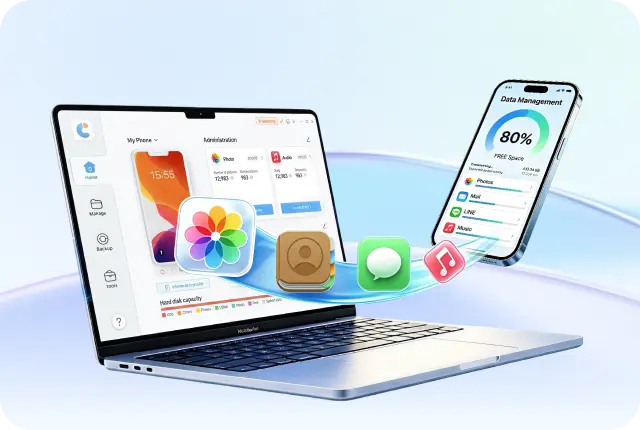
Enabling iPhone developer mode on iOS 26 or iOS 18 is simple when you use iCareFone. It offers a free Developer Mode feature, so you don't need Xcode or any technical setup. The tool is beginner-friendly and also gives extra options like backup, data transfer, and file management. This makes it one of the easiest ways to enable iPhone developer mode safely.
 Secure Download
Secure Download
Secure Download
Features:
- Free Developer Mode Tool: Easily enable iPhone developer mode without Xcode
- Beginner-Friendly Interface: Simple steps, no technical skills needed
- Wide iOS Support: Works with iOS 26, iOS 18, and older versions
- Quick Access Setup: Add Developer Mode tool directly on the home screen
- No Coding Required: No need for Apple developer account or coding
Steps to Enable iPhone Developer Mode via iCareFone
-
Download and install the tool
Install iCareFone on your PC or Mac. Then connect your iPhone using a Lightning to USB cable. -
Add Developer Mode tool
Once your device is detected, click the edit (pen icon) in the Quick Access section. Add Developer Mode to make it easy to access. -
Go to iPhone Settings
Open Settings on your iPhone and tap Privacy & Security. -
Turn on Developer Mode
Scroll down and find Developer Mode, then switch it on. -
Confirm after restart
Your iPhone will restart. After it turns on, tap Turn On again in the pop-up and enter your passcode to confirm.


2. Enable iPhone Developer Mode from iPhone Settings
Enabling Developer Mode directly on your iPhone is the simplest method. This method allows you to run internal or development apps safely without using a Mac. It is essential for devices running iOS 16 and above.
Steps to enable developer mode without computer
-
Install a development app first
Before enabling Developer Mode, you must have a development or test app installed. Use tools like Xcode or Expo to create and install a development build. Once installed, open the app. A prompt will appear asking you to enable Developer Mode. Tap OK to continue. -
Go to iPhone Settings
Open the Settings app on your iPhone. Navigate to Privacy & Security. -
Locate Developer Mode
Scroll down to find Developer Mode in the list of options. -
Turn Developer Mode On
Toggle the Developer Mode switch. Your iPhone will show a security warning, explaining that Developer Mode allows installation of non-App Store apps. Tap Restart to continue. - Confirm activation after restart


After your iPhone restarts, unlock it. A system alert will appear asking you to Turn On Developer Mode. Tap it. Enter your device passcode to finalize the process.

3. Enable iPhone Developer Mode with Xcode
For users who have access to a Mac, using Xcode is a standard way to enable Developer Mode. This is often used by professional developers for testing apps directly from Xcode.
Steps for enable Developer Mode on a device
-
Install Xcode on Mac
Download Xcode from the Mac App Store. Open it after installation. -
Connect your iPhone to the Mac
Use a Lightning-to-USB cable to connect your iPhone. Make sure the device is recognized in Finder or Xcode. -
Open Devices and Simulators
In Xcode, go to Window > Devices and Simulators. Select your connected iPhone from the list. -
Enable Developer Mode
Xcode will detect that Developer Mode is not enabled. A prompt will appear on your iPhone asking you to Turn On Developer Mode. Tap Turn On and enter your passcode. - Complete setup
Xcode will prepare your device for development. Once finished, your iPhone can run apps directly from Xcode.


Part 3. How to Fix Developer Mode Not Showing on iPhone
Updating your iPhone or iPad to a new iOS version brings exciting features, but sometimes Developer Mode does not show. This can be frustrating if you want to test apps or use advanced features. Here's a guide on why this happens and how to fix it, including ways to enable developer mode on iPhone 17.
1. Check if Developer Mode is Turned On
Before troubleshooting, make sure Developer Mode is actually enabled:
- Open the Settings app on your iPhone or iPad.
- Navigate to Privacy & Security.
- Look for Developer Mode and ensure it is toggled ON.
- If it is off, switch it on to enable Developer Mode on your device.

2. Reasons Why Developer Mode Might Not Show
If Developer Mode still doesn't appear, it could be due to one or more of these reasons:
- Incomplete iOS UpdateIf your iOS 18/26 update wasn't fully installed, Developer Mode may not activate. Reinstall the update or reset device settings.
- Device CompatibilityNot all iPhone or iPad models support Developer Mode features. Make sure your device supports iOS 18/26 developer tools.
- Apple ID RestrictionsDeveloper Mode may be hidden if your Apple ID is not linked to an Apple Developer account. Verify your Apple ID is registered and active.
- System BugsiOS updates may have bugs affecting certain functions. Keep your device updated with the latest patches.
- Xcode Not ConnectedDeveloper Mode sometimes only appears after connecting your iPhone to a Mac with Xcode installed.
- Apple Developer Program Not ActivatedIf your Apple ID is enrolled but not fully verified, Developer Mode may not appear.
- Restrictions and ProfilesMobile Device Management (MDM) profiles, Screen Time limits, or hidden system bugs can prevent Developer Mode from showing.
Part 4. Is It Safe to Enable Developer Mode on iPhone?
Enabling iOS Developer Mode on an iPhone is generally safe when done properly, but it comes with important considerations. This mode is designed by Apple to allow developers to test apps, use internal builds, and access advanced system features. Apple requires a device passcode and a restart to confirm activation, which adds a layer of security.
However, enabling Developer Mode can expose your device to potential risks:
- Installation of Unverified Apps: Apps not from the App Store can access more system resources. Only install apps from trusted sources.
- Security Vulnerabilities: Some developer features bypass normal iOS restrictions, which could be exploited if malicious software is installed.
- Data Access Risks: Debugging tools can access sensitive data if misused.
To stay safe while using Developer Mode:
- Keep your iPhone updated to the latest iOS version.
- Avoid installing apps from untrusted or unknown sources.
- Disable Developer Mode when it's no longer needed.
Part 5. FAQs on iPhone Developer Mode
Q1. What iOS version supports Developer Mode?
Developer Mode is supported on iPhones and iPads running iOS 16 and above, including iOS 18 and iOS 26. Older versions of iOS do not have this feature.
Q2. Why is my iPhone not showing Developer Mode?
Developer Mode may not show if your device hasn't been updated properly, is not compatible, or your Apple ID is not linked to a developer account. Other reasons include system bugs, MDM restrictions, or Xcode not being connected for development builds.
Q3. How to Turn Off Developer Mode on iOS 26/18?
To turn off Developer Mode, go to Settings > Privacy & Security > Developer Mode and toggle it OFF. Then, restart your iPhone to apply the changes.
Conclusion
Enabling iPhone Developer Mode unlocks powerful features for app testing, internal builds, and advanced iOS functions. Whether you use your device for development or want to explore new capabilities, following the correct steps ensures a smooth and safe experience. For beginners and advanced users alike, iCareFone > provides the easiest way to enable iPhone Developer Mode without Xcode or a Mac. It's fast, reliable, and beginner-friendly, making it the top choice.



- Free backup everything you need on iPhone/iPad/iPod
- Transfer music, photos, videos, contacts, SMS without limitation
- Selectively restore files without erasing current data
- 1-Click to transfer photos from iPhone to PC/Mac
- Supports the latest iOS 26 and iPhone 17
100% clean & secure
100% clean & secure
Buy safely
Buy safely
 The END
 130
130 17
17 15
15 41
41 21
21 28
28 87
87